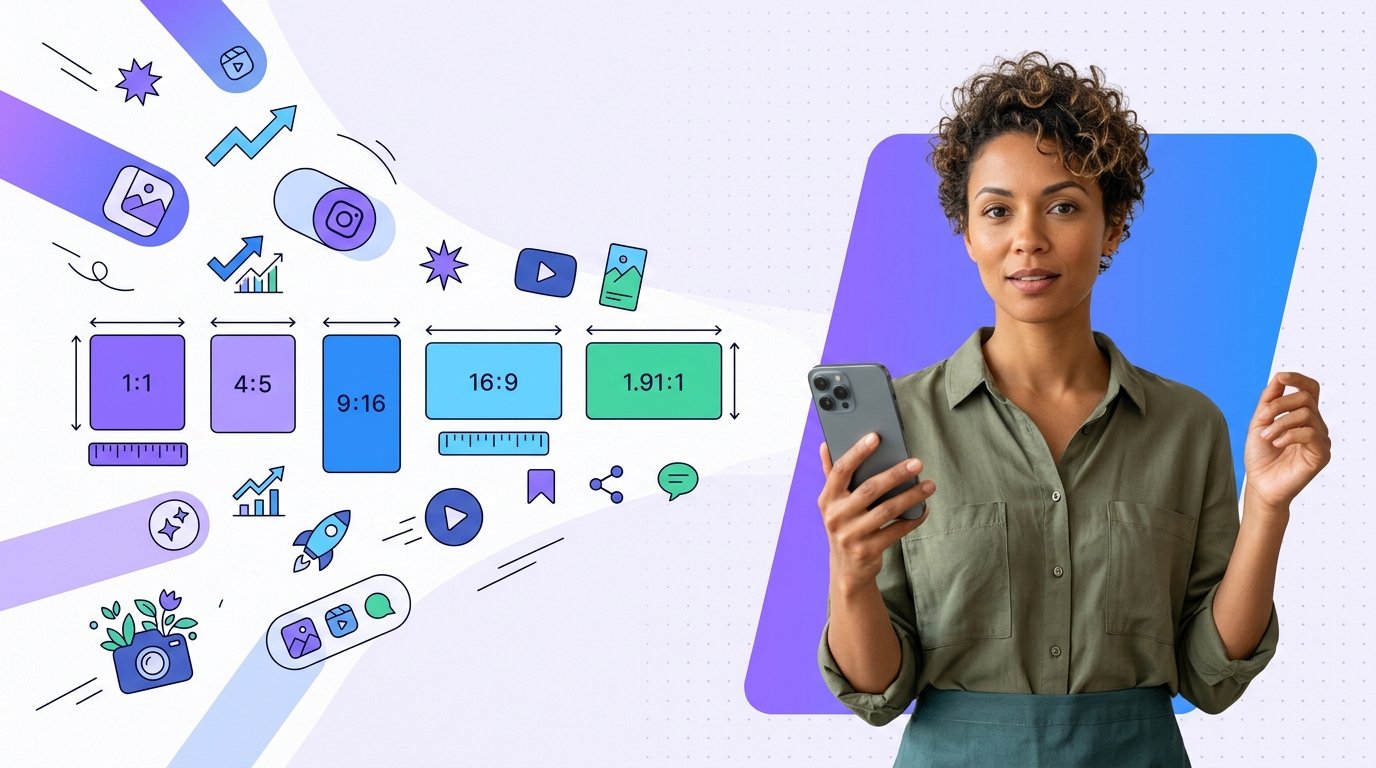
Hello! If you have ever uploaded a photo only to find your logo cropped out, or posted a Story where your text disappeared behind Instagram's interface, you are not alone. Getting the dimensions right is one of those small things that saves you real frustration. This guide cuts straight to what you need, by situation, so you can make a decision in under a minute.
The formats you need to know at a glance
According to Buffer's Instagram size guide (updated October 2026), here are the current standard dimensions:
- Square post (1:1): 1080 × 1080 px
- Portrait post (4:5), recommended for feed: 1080 × 1350 px
- Extended portrait (3:4), available when posting directly in the app: 1080 × 1440 px
- Landscape post (1.91:1): 1080 × 566 px
- Stories and Reels: 1080 × 1920 px (9:16)
- Profile photo: 320 × 320 px, displayed as a circle
One practical note on that 3:4 format: it is only available when you publish directly from the Instagram app. If you use a third-party scheduling tool, the maximum portrait ratio is 4:5 (1080 × 1350 px), because that is the limit of Meta's API. So for most people, 4:5 is the safest default and the one Instagram itself recommends for feed posts.
Why portrait wins over square on mobile
A square post and a portrait post may look similar in a planning spreadsheet, but on someone's phone screen they are very different. Portrait images take up more vertical space in the feed, which means the viewer's eye stays on your content longer before scrolling past. That is why 4:5 generally outperforms square in reach, and why Instagram recommends it.
There is also a grid change worth knowing: the profile grid now previews all posts in a 3:4 portrait ratio, not the old 1:1 square. If your profile presentation matters to you (for a salon, a shop, a studio), this affects how your posts look side by side. It does not change how they appear in the feed, but it does mean a photo composed as a tight square may look awkward in your grid.
A quick decision guide by situation:
- Product shot, dish, item to sell: portrait 4:5, so the product fills the screen
- Before/after (beauty, renovation, craft): square 1:1 works well, side by side is easy to read
- Tutorial or process: Reel in 9:16, or a carousel in 4:5
- Face-to-camera, personal introduction: portrait 4:5 or Reel 9:16
- Landscape (venue, exterior, wide shot): 1.91:1, but use it sparingly since it shrinks in the grid
Stories and Reels: the safe zone you cannot ignore
Both Stories and Reels use 1080 × 1920 px (9:16). But the full canvas is never fully visible. Buffer's guide explains that roughly the top 250 pixels of a Story are covered by the profile photo, username and timestamp, and the bottom 250 pixels disappear behind the message bar. For Reels, the bottom dead zone extends to around 410 pixels, because Instagram stacks the caption, audio name, and action buttons there.
In practice, keep all text, logos and faces in the central band of your Story or Reel. Concretely, stay at least 269 px from the top, 672 px from the bottom, and 65 px from each side. If your workshop name or price sits outside that zone, nobody will read it.
On video specs, here is what you need if you are exporting from an editing app: MP4 or MOV container, H.264 or HEVC codec, 23 to 60 fps, maximum 300 MB for Reels. Stories can run up to 60 seconds per segment, and Reels go up to 3 minutes when posted in the app (up to 15 minutes via the API). Audio should be AAC at up to 48 kHz.
Carousels: now up to 20 slides, with a catch
In June 2026, Instagram raised the carousel limit from 10 to 20 slides per post, and each slide can now carry its own individual caption. For a florist showing a wedding setup step by step, or a trainer walking through a full routine, that is a genuinely useful upgrade.
The catch: scheduling tools are currently capped at 10 slides, because that is the API limit set by Meta, not Instagram. So if you want to use 11 to 20 slides, you need to publish manually from the app. All slides in a carousel must share the same aspect ratio, and 4:5 (1080 × 1350 px) is the recommended choice.
Carousels are particularly strong for content that rewards tapping through, such as tutorials, comparisons or step-by-step guides.
Three mistakes that quietly hurt your content
Beyond the numbers, there are a few habits that regularly cause problems for small accounts:
- Putting text at the edges of a Story. The interface crops more than you expect. Anything near the top or bottom risks disappearing entirely.
- Using landscape for every photo. A 1.91:1 photo looks tiny in the grid and takes up less screen space in the feed. Keep landscape for genuinely wide shots where the context matters.
- Assuming the grid is still square. If you designed photos for a square grid, check how they look now at 3:4. Some compositions that worked before now feel cropped or off-center in the profile view.
If you use KommIA, the built-in editor lets you crop directly to Instagram's formats, so you are never guessing whether your photo fits. When you want to improve a photo, the AI retouching adjusts light, sharpness and colours on your actual image, you trigger it, review the before-and-after, and keep the version you prefer.
Profile photo: small but important
Your profile photo is stored at 320 × 320 px and always displayed as a circle. Upload something at least that size, ideally larger, and make sure the important part (your face or your logo) sits well centered. Anything near the edges will be clipped by the circular crop. This is one of the first things a new visitor sees, so it is worth getting right once and leaving it alone.
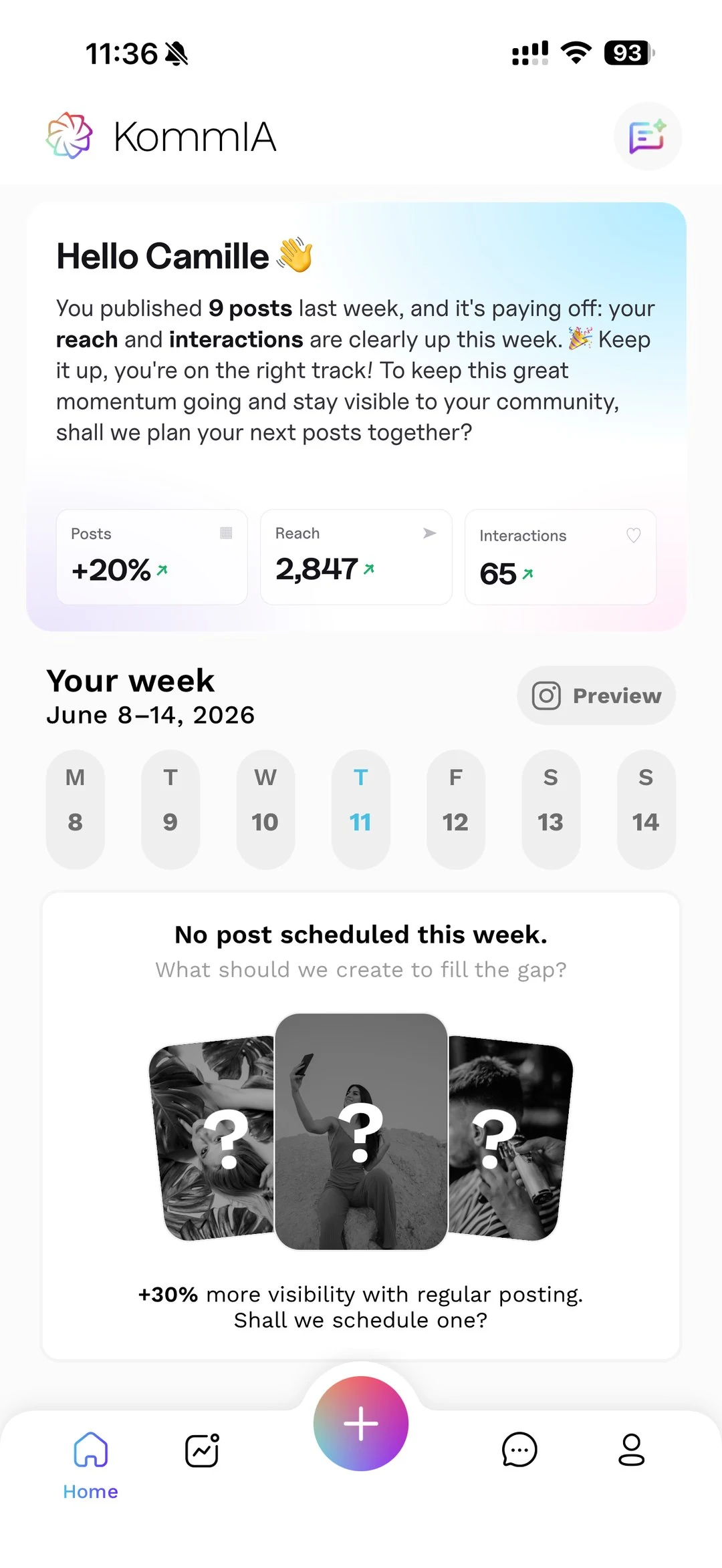
For everything else, KommIA's weekly calendar shows you suggested time slots for each post, portrait feed posts, Stories or Reels, based on your account's activity, and you choose the one that suits you.